
You don’t need new apps or extensions. The browser reader mode is already built into most modern browsers.
Online reading feels harder than it should. Articles are cluttered with ads, pop-ups, autoplay videos, and sidebars competing for attention. Even well-written content can become tiring to read when the page keeps interrupting you.
One simple browser setting removes most of that friction instantly, making long reads easier, faster, and far more comfortable.
Why Reading Online Feels Mentally Exhausting
Web pages are designed to capture attention, not preserve it. Visual noise, movement, and competing elements force your brain to refocus constantly.
Each interruption pulls you out of the reading flow. Even if you don’t consciously notice it, your attention is being taxed.
This creates fatigue that has nothing to do with comprehension and everything to do with the environment.
Explore Why Setting a 10-Minute Timer Can Make You Surprisingly Productive to strengthen focus sessions.
The Setting That Changes Everything: Reader Mode
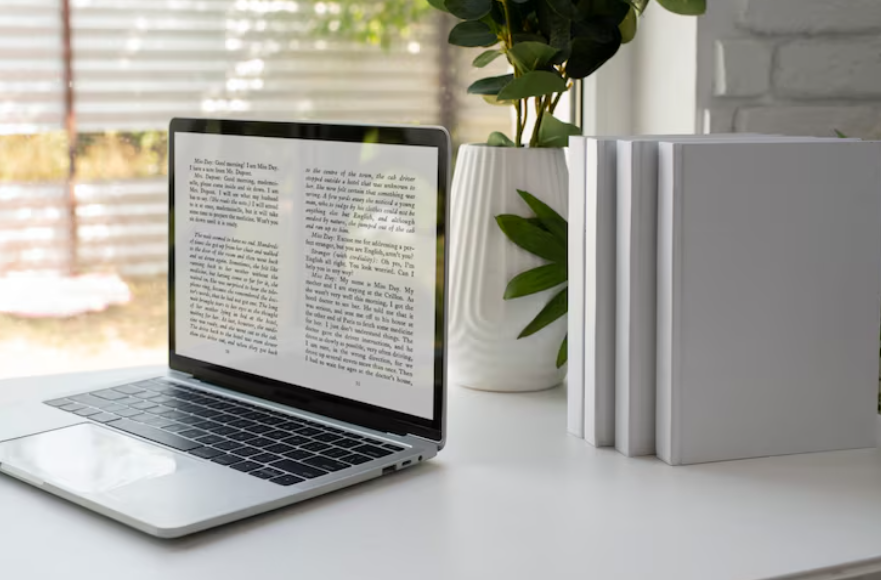
Reader mode strips a webpage down to its essential content. Text, basic images, and headings remain. Everything else disappears.
Ads, sidebars, pop-ups, navigation menus, and background clutter are removed. What’s left looks closer to a book or document than a website.
This single change dramatically improves readability without altering the content itself.
Why Reader Mode Improves Comprehension
When visual distractions are removed, the brain can focus on meaning instead of filtering noise. Sentences flow more easily. Paragraphs feel lighter.
Reader mode also standardizes font size, line spacing, and line width, reducing eye strain. Many readers don’t realize how much poor typography slows them down until it’s fixed.
The result is a deeper focus with less effort.
Read Phone Settings You Should Change Right After Getting a New Device to optimize usability early.
How to Use Reader Mode in Seconds
Most browsers activate reader mode with one click. Look for an icon that resembles lines of text or a book in the address bar.
Once activated, the page reloads into a simplified view. You can exit just as easily when you’re done.
This works on articles, blog posts, and long-form content. It may not appear on pages that aren’t text-focused, which is intentional.
Customizing Reader Mode for Comfort
Reader mode often includes customization options. You can adjust font size, font style, background color, and sometimes line spacing.
Switching to a light background during the day and a dark background at night reduces eye strain. Increasing font size slightly improves speed and comfort without sacrificing layout.
These adjustments persist across sessions, so once set, reading becomes consistently easier.
See How to Make Your Phone Battery Last Longer Without Turning Everything Off for smarter default settings.
Why This Beats Extensions and Apps
Browser extensions can help, but they add complexity and maintenance. Reader mode is native, lightweight, and always available.
Because it’s built into the browser, it doesn’t slow performance or require permissions. It works instantly without setup.
This simplicity is why it’s often overlooked and why it’s so effective.
Where Reader Mode Makes the Biggest Difference
Long articles, research pieces, and instructional content benefit most. Anything that requires sustained attention becomes easier to digest.
Reader mode is also helpful on mobile devices, where screen space is limited, and ads are especially intrusive.
If you find yourself abandoning articles halfway through, this setting is likely the missing piece.
How This Changes Your Reading Habits Over Time
When reading feels easier, you read more. You’re more likely to finish articles instead of skimming or saving them for later.
Over time, this improves retention and reduces frustration. Online reading starts to feel intentional instead of draining.
The content hasn’t changed. Your relationship with it has.
Check out The Easiest Way to Speed Up a Slow Laptop for another quick performance upgrade.
Making This a Default Habit
The habit is simple: if an article feels cluttered, switch to reader mode immediately.
Don’t push through discomfort. Remove it.
Once you experience how much smoother reading becomes, you’ll start using reader mode automatically, especially for longer pieces.
Minor changes to the environment often yield the greatest gains in focus.